Creating a playlist on YouTube is an easy and effective way to organize your favorite content around shared themes or specific purposes, making it more accessible and user-friendly. However, with varying interfaces across different devices, many people still wonder: How can I create a playlist on YouTube?
In this article, MKT Software will walk you through the easiest steps to create a YouTube playlist, whether via the mobile app or the desktop version.
I. What are YouTube playlists?
A YouTube playlist is a collection of videos that are grouped together based on a theme, subject, or personal preference. They are a great way to keep related content organized, as well as an easy way for users to watch content sequentially.
Playlists are especially useful for content creators, as they can also offer the following benefits:
- Increase views on older videos.
- Provide curated content for different audience segments.
- Enhance video discoverability.
Read more: Can YouTube videos have QR codes? Quick 3-step guide
II. How can I create a playlist on YouTube?
Creating a YouTube playlist is a straightforward process, regardless of the device you’re using. Below are quick guides on how to create a YouTube playlist on both the desktop and mobile versions:
2.1. How to make a playlist on YouTube mobile
Many viewers prefer using the YouTube mobile app because of its convenience. Creating a playlist allows them to save and easily access videos they’re interested in, all in one organized format.
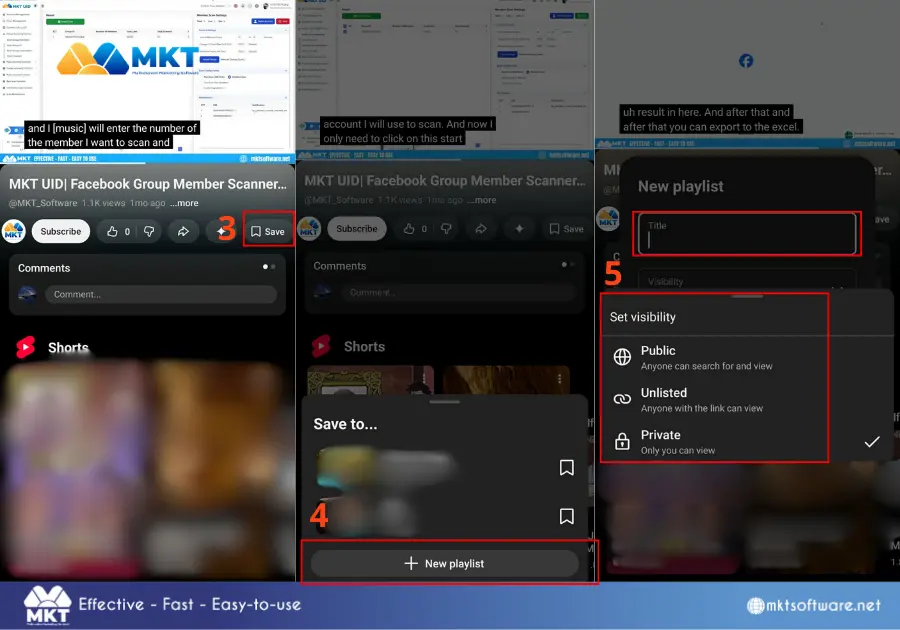
Below are the steps to create a playlist on the YouTube mobile app:
- Step 1: Open the YouTube app and sign in with your Google account.
- Step 2: Find a video you want to add to your new playlist.
- Step 3: Tap the Save button next to the video title or under the video player.
- Step 4: Select New Playlist at the bottom.
- Step 5: Name your playlist and choose its privacy settings (Public, Unlisted, or Private).
- Step 6: Tap Create to finish.
2.2. How to make a playlist on YouTube PC
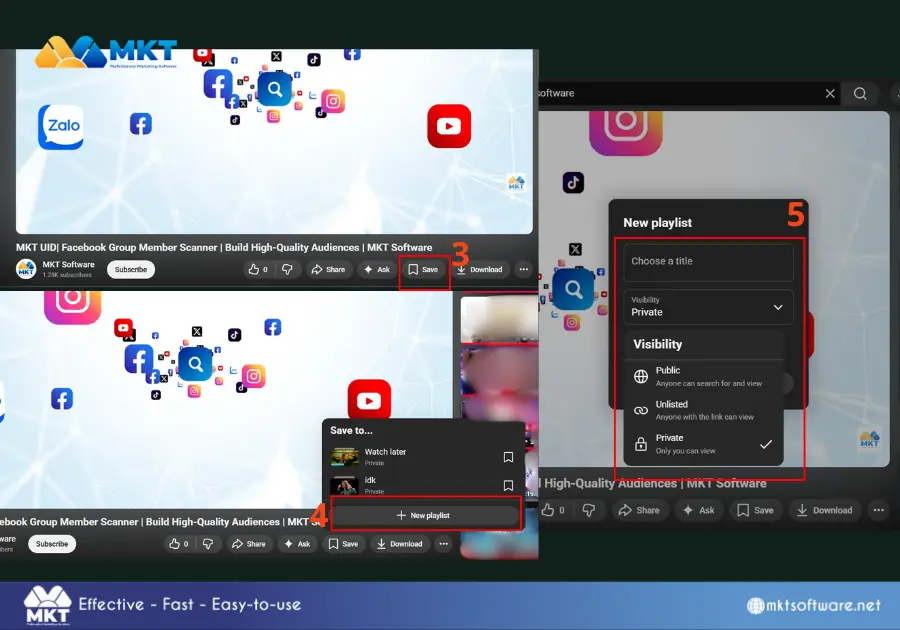
Meanwhile, many content creators prefer using the PC version of YouTube for its larger screen and more detailed controls. Below are the steps to create a playlist on the YouTube desktop version:
- Step 1: Open YouTube in your browser and sign in to your account.
- Step 2: Find a video you want to add to a playlist.
- Step 3: Below the video player, click the Save button.
- Step 4: In the drop-down menu, click Create a New Playlist.
- Step 5: Name your playlist, choose your privacy settings (Public, Unlisted, or Private).
- Step 6: Click Create.
III. People-Also-Ask
Even though creating a YouTube playlist is a relatively simple process, many issues or additional inquiries may arise unexpectedly. Below are some frequently asked questions related to creating and managing playlists on YouTube
3.1. Do I need a YouTube channel to create a playlist?
The answer is Yes, you need a YouTube account to create a playlist. Fortunately, your YouTube account is automatically linked to your Google account, so there’s no need to create a separate account. Additionally, you don’t have to be a content creator with a YouTube channel to create a playlist as any YouTube user can organize and save videos into playlists.
3.2. Is there a limit to YouTube playlists?
YouTube does not impose a specific limit on the number of playlists you can create or the number of videos that can be added to a playlist. However, each playlist can hold up to 5,000 videos, which is more than enough for most users to organize and store their content.
3.3. Why can’t I find my saved playlist?
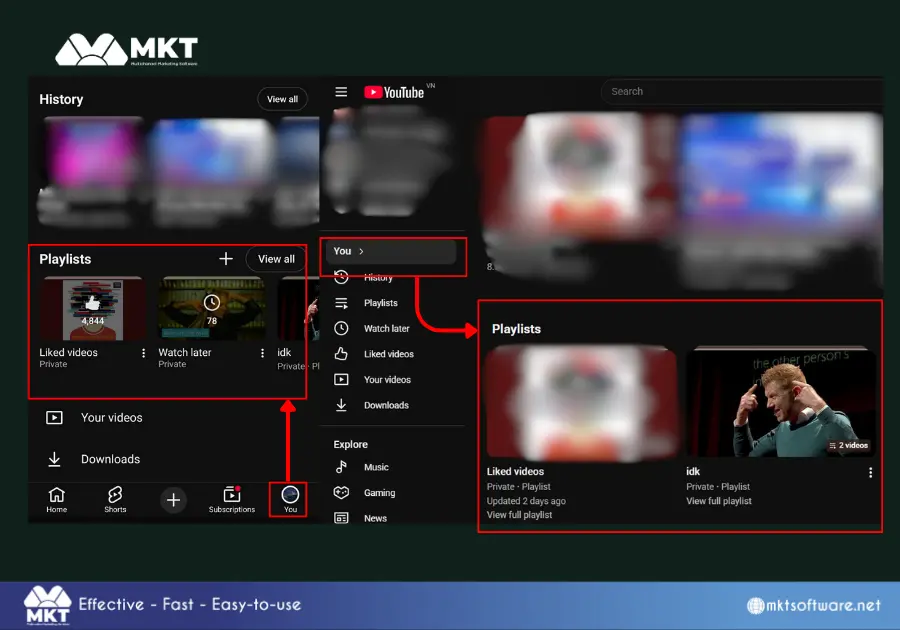
Normally, your saved Playlist will be located at the You section of YouTube. If you can’t find your playlist, it could be due to a few reasons:
- Privacy Settings: If you set your playlist to “Private,” it will only be visible to you when you are logged in. Try changing the privacy setting to “Public” or “Unlisted” if you want others to find it.
- Account Confusion: Make sure you’re signed in with the correct Google account. Sometimes playlists may be saved under a different account.
- App Glitch: Try refreshing the YouTube app or website. If the playlist still doesn’t show, log out and log back in.
IV. Final thoughts: Creating a YouTube playlist
Creating a playlist on YouTube is a simple and effective way to organize videos, whether you’re curating content for yourself or your audience. Whether you’re using the YouTube mobile app or the desktop site, the process is quick and straightforward, making it easy to organize your favorite videos and share them with others.
You may be interested in: How can we upload video on YouTube: Mobile and desktop version