Uploading a video to YouTube is one of the most basic yet important actions for any aspiring YouTube channel. While the process itself is pretty straightforward, many users still encounter difficulties.
In this article, MKT Software will answer the burning question: How can we upload video on YouTube from phone and desktop?
I. Why should you upload a video on YouTube?
YouTube is undoubtedly one of the largest video streaming platforms in the world, making it an ideal place to share videos for both personal and professional purposes. Due to its global reach, uploading video on YouTube allows users to increase visibility and build lasting connections with viewers across different regions and demographics.
Some key reasons why people upload videos on YouTube include:
- Sharing knowledge, tutorials, or educational content with a wide audience.
- Growing a business presence online.
- Promoting products, services, or creative projects.
- Storing and sharing videos in a centralized and accessible platform.
- Creating long-term content that can continue to attract views over time.
Read more: What does impression mean on YouTube 2026? Detailed explanation and tips

II. How can we upload video on YouTube?
The process of uploading a video to YouTube may vary slightly depending on the device you’re using. However, the basic requirements apply to both mobile and desktop versions. To upload videos to YouTube, you’ll need the following:
- A Google account.
- Access to YouTube.
- An appropriate video that meets YouTube’s standards.
Below are the steps to upload video on YouTube from both phone and desktop:
2.1. How to upload video on YouTube from mobile
Uploading videos from a mobile phone is convenient and as such, is commonly used, especially for short-form or on-the-go contents. Below are detailed steps to upload video on YouTube from mobile:
- Step 1: Open the YouTube app and sign in to your account.
- Step 2: Tap the Create (+) icon at the bottom of the screen.
- Step 3: Select Upload a video from the menu.
- Step 4: Choose a video from your phone’s gallery or camera roll.
- Step 5: Add a title and description for the video.
- Step 6: Select the audience setting.
- Step 7: Choose the video visibility (Public, Unlisted, or Private).
- Step 8: Tap Upload to publish the video.

2.1. How to upload video on YouTube from laptop
Uploading from a laptop or desktop computer can offer users more control, especially for longer videos or brand content. This method is commonly used by creators who edit videos using desktop software.
To upload videos via a laptop to YouTube, simply follow these steps:
- Step 1: Open a web browser and go to YouTube.
- Step 2: Sign in to your Google account.
- Step 3: Click the Create icon in the top-right corner and select Upload video.
- Step 4: Drag and drop your video file into the upload window or click to select a file.
- Step 5: Enter video details such as title, description, and thumbnail.
- Step 6: Set the audience and visibility options.
- Step 7: Click Publish to complete the upload.

III. Common issues when uploading videos to YouTube
While uploading a video to YouTube is usually straightforward, users may still encounter errors during the process. Understanding what each error means and why it occurs can help you resolve the problem more efficiently and avoid repeated upload failures.
Below are some of the most common issues users face when uploading videos to YouTube:
3.1. The server has rejected the file
This error usually appears when YouTube is unable to process the uploaded video file. In most cases, the problem is related to the video format, file size, or encoding settings. To reduce the risk of this issue, make sure your video is exported in a supported format such as MP4 and uses standard video and audio codec.
3.2. An error has occurred while sending data over the network
This message typically indicates an interruption in your internet connection during the upload. Switching to a stronger network, using a wired connection, or restarting the upload can usually fix the problem.
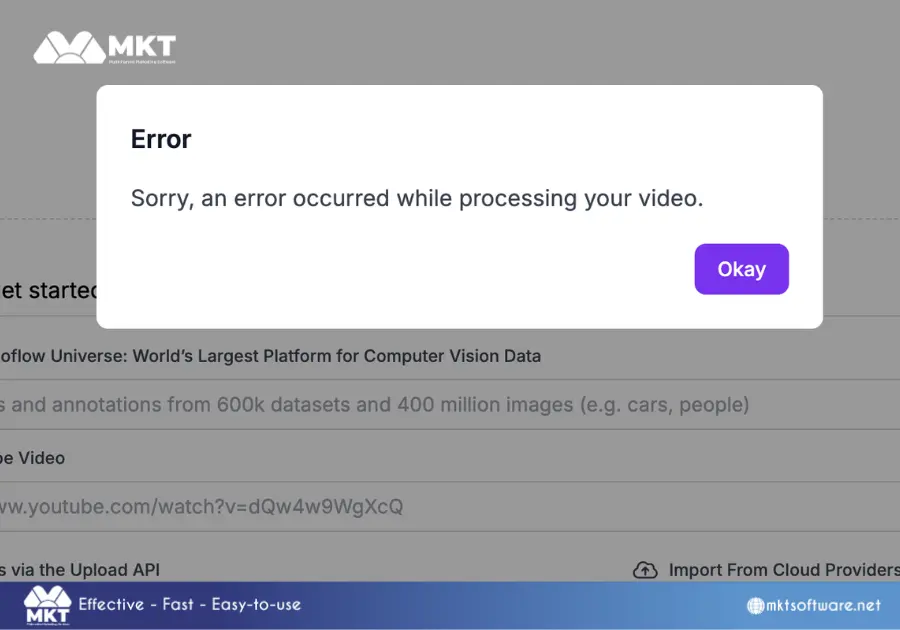
3.3. Can’t upload. Your channel status or account settings currently do not support uploads
This error is related to account-level restrictions. It may occur if your YouTube channel is not verified or has received community guideline strikes.
Checking your channel status in YouTube Studio can help identify whether uploads are restricted. In some cases, verifying your account or resolving policy issues will restore upload functionality.
3.4. A security error has occurred
This error often appears when browser security settings, firewalls, antivirus software, or browser extensions interfere with the upload process.
To fix this error, you need to disable unnecessary browser extensions, turning off VPNs temporarily, or switching to a different browser.
IV. Final thoughts: Uploading YouTube videos
Whether you are sharing content for the first time or uploading videos regularly, following the correct methods and being prepared for potential issues helps ensure that your videos reach YouTube smoothly and are ready to be discovered by your audience.
See also: Boost YouTube Video Views – How to Reach 10k Views Fast Without Ads