Depending on the circumstances, sometimes a YouTuber may need to delete their channel entirely. However, many people still don’t know how to erase a YouTube channel properly due to fear of also having to delete the Google account associated with that channel. In reality, you can easily delete a channel and keep your account at the same time.
In this article, MKT Software will break down on how to erase a YouTube channel permanently the fastest way.
I. Why should you delete a YouTube channel?
There can be several valid reasons for why an individual might want to delete their YouTube channel. But generally, the decision is not impulsive but tied to changes in goals, branding, or privacy concerns.
Some common reasons behind a YouTuber deleting their channel include:
- You created the channel by mistake and never intended to publish content.
- Your content no longer reflects your personal or professional identity.
- You are rebranding and want to start fresh with a new channel.
- The channel is inactive and no longer serves a purpose.
- You are concerned about privacy, outdated videos, or past uploads.
- The channel was hacked, and you prefer a clean reset.
See more: What is the best program to increase YouTube views? 5 effective options
II. How to erase a YouTube channel completely
Erasing a YouTube channel is a relatively simple and quick process; however, it’s important to note that once deleted, the action is irreversible. As such, before continuing with your channel deletion, you need to ensure that you fully understand the consequences of permanently removing the channel.
Below are the steps to erase a YouTube channel:
- Step 1: Sign in to the Google account that owns the YouTube channel.
- Step 2: Go to YouTube Studio and click on Settings in the bottom-left corner.
- Step 3: Select Channel, then click on Advanced settings.
- Step 4: Scroll down and choose Remove YouTube content.
- Step 5: Enter your Google account password to confirm your identity.
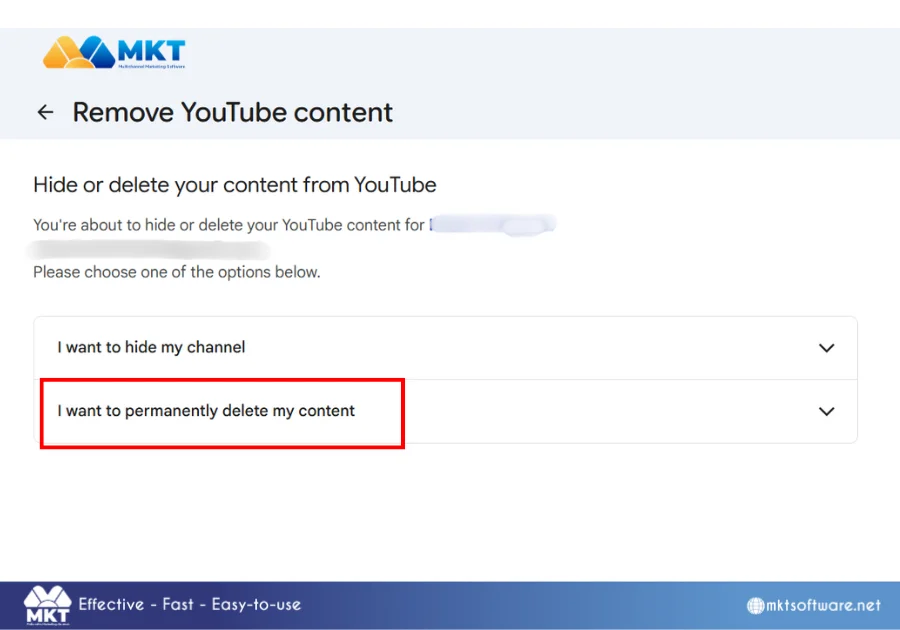
- Step 6: Select I want to permanently delete my content.
- Step 7: Click Delete my content to finalize the process.
Once confirmed, the channel will begin the deletion process. While the action takes only seconds, YouTube may take a short period to fully remove all traces of the channel from search results and internal systems.
It is important to note that deleting a YouTube channel won’t delete your entire Google account. Gmail, Google Drive, and other Google services remain unaffected.
III. An alternative to deleting a YouTube channel
The decision to delete a YouTube channel is permanent. Because of this, many users hesitate to go through with deletion, especially if they are unsure whether they may want to return to YouTube in the future. This is where hiding a YouTube channel becomes a practical and safer alternative.
Hiding a channel allows you to remove your presence from public view without permanently erasing your content. Below are the steps to hide your YouTube channel:
- Step 1: Sign in to the Google account that owns the YouTube channel.
- Step 2: Open YouTube Studio and click Settings in the lower-left corner.
- Step 3: Select Channel, then go to Advanced settings.
- Step 4: Scroll down and click Remove YouTube content.
- Step 5: Enter your Google account password to confirm your identity.
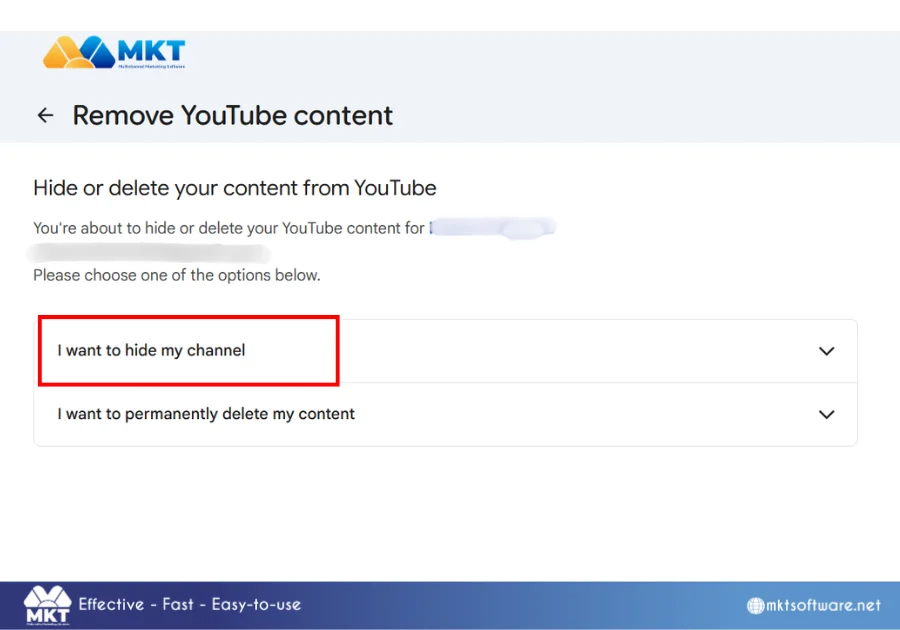
- Step 6: Choose I want to hide my channel.
Once these steps are completed, your channel will be hidden from public view. You can choose to unhide and restore it later by signing back in and reactivating the channel, provided it has not been permanently deleted.
IV. Picking the right option
Deleting a YouTube channel is the right choice when you are confident that the content no longer serves any purpose. However, if there is even a small chance you may want to return, hiding the channel provides a safer alternative.
You may be interested in: How To Get Your Videos Recommended On YouTube: 7 Proven Strategies